

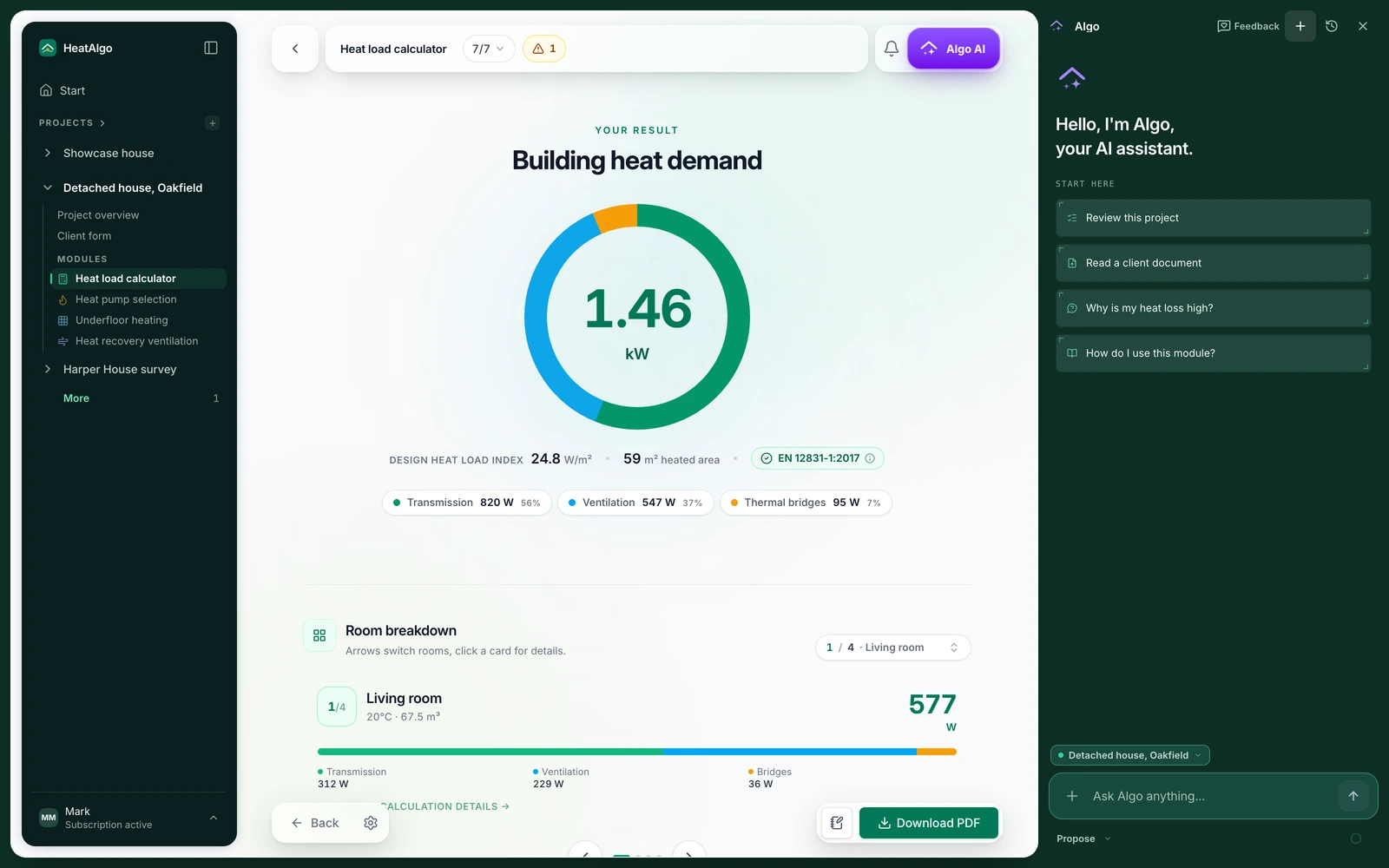
Algo AI is the assistant in every HeatAlgo module. It reads the building documents and proposes values for the form, answers questions from your project's data and checks the project note by note. One thing it never does: it does not calculate the heat loss - that is always the algorithm, to EN 12831-1. Below is the whole workflow with the assistant step by step, together with what happens to the files and where its permissions end.
1. Upload the documents or paste text
You open the Algo AI window with the violet button in the app's top bar - inside a project or outside one. Drop in a PDF or a photo: the building design, the window schedule, the energy performance certificate - up to five files and 20 MB at once. You can also paste plain text, for instance a row from the window schedule. From the plan Algo AI takes the room dimensions, from the schedule the windows and doors, from the certificate the building elements.
2. Approve the proposals
After reading, Algo AI says how many values it found and which modules they belong to - twelve windows and a balcony door from the window schedule, say, ready to enter under Windows. You enter them with one button or reject them. Values read from a document are a proposal until you approve them, and a value you have already entered is not replaced without asking. Fields with nothing in the documents stay empty - Algo AI does not guess.
3. Ask about the project
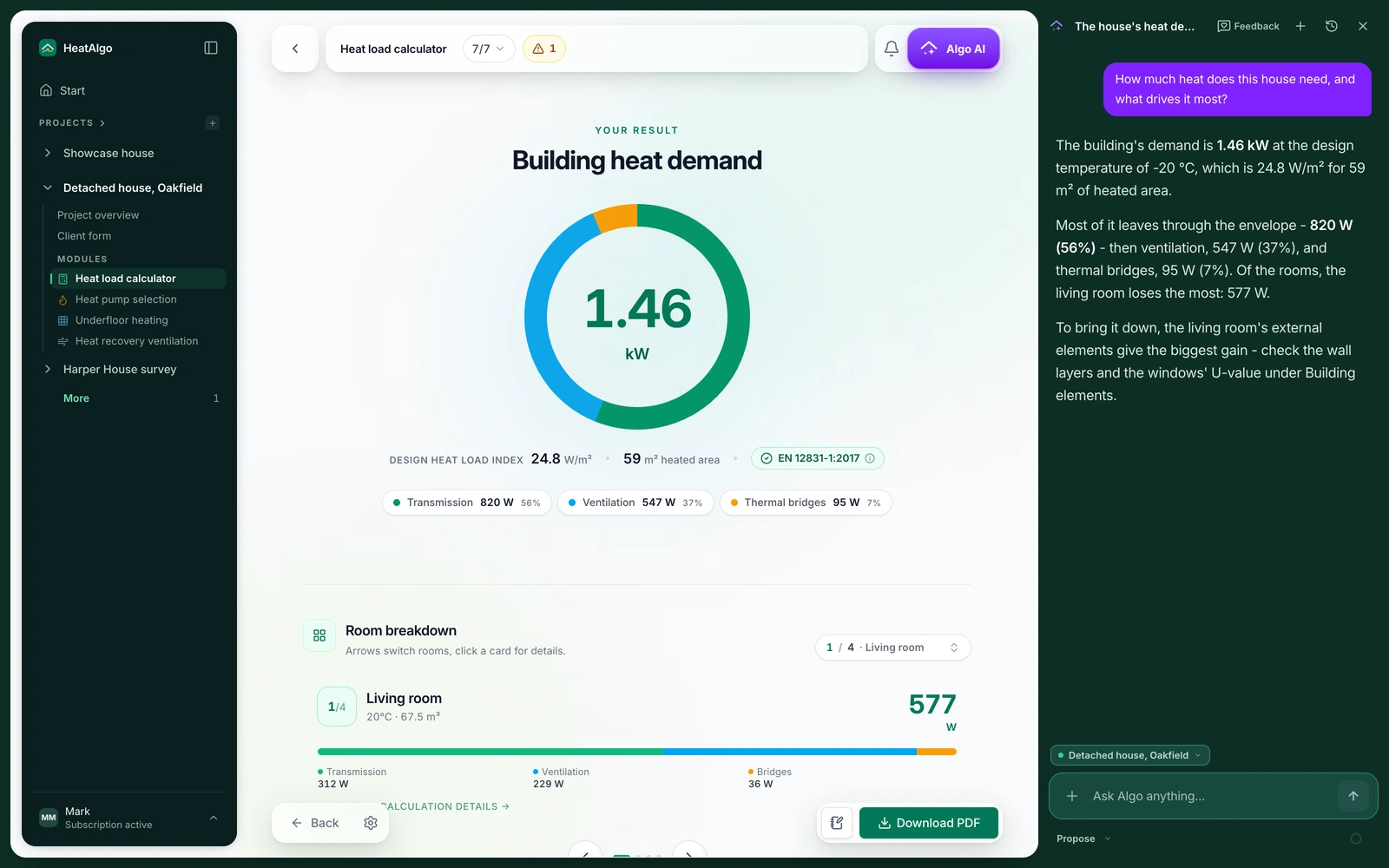
In the same window you ask about the project: how big is this wall, which window is the largest, what is the living room's demand. Algo AI answers from your project's data - the building elements, the rooms and the open module's results - not from general knowledge of the standard. Conversations stay on the account and you can return to them from the conversation list. Data that identifies your client is not sent to the model.
4. Check the project
One instruction - "Check the project" - and Algo AI walks through the open module. It lists things to check and things to consider, separately, and every note leads to the field it concerns: you click and you are in that field - in the heat load calculation, in the heat pump sizing, in heat recovery. You can repeat the check after every change.
5. Say what to change
When you ask for a given value to be changed, the mode decides. In Propose mode Algo AI shows the change and you approve it before it is saved. In Automatic mode it saves at once - and writes out in the conversation what it changed and what was there before, with an Undo button that works for 30 days. Before it changes a value, we save a copy of the project's previous version. In underfloor heating, where the design is a drawing, Algo AI only asks and proposes - it writes nothing on the plan.
What Algo AI does not do
It does not calculate the heat loss. The heat demand is always calculated by the algorithm to EN 12831-1 (ISO 6946, ISO 13370), and the report carries the algorithm's figures. Algo AI reads, proposes, answers and checks - it does not touch the arithmetic. It also does not export reports, does not send anything to the client and does not work on several projects at once.
What happens to the files
Documents are read in memory and discarded right after processing; the conversation keeps the file name and what Algo AI read from it. One exception needs your button: a floor plan in underfloor heating or heat recovery can be set as the drawing's backdrop. The documents are processed on our behalf by the model provider under a data processing agreement; we do not send data that identifies the client. The privacy policy, section 4, has the details.
Which modules
All four. On instruction it writes values in the heat load calculation, the heat pump sizing and heat recovery; in underfloor heating it only asks and proposes. The account is free, and Algo AI has its own allowance in it - larger on the higher plans, described in the pricing.
Create a free account